Ask "when can we meet?"
Jefferson checks your calendar, and your colleagues' calendars if they're included. It gives you three good times, usually on three different days, and a sentence ready to paste into your reply.
"Good" means it avoids
- Times back-to-back with another meeting
- Lunch
- Very early or very late hours for anyone involved
- Weekends
And it plays it safe
- Nothing sooner than two hours from now, by default.
- Times are worked out by fixed rules, not guessed, so Jefferson never offers a time when someone is busy.
Say it the way you'd say it.
Tell Jefferson where an outside person is (their city or time zone). It will only offer times inside their working day, and it writes the sentence in their time zone, because they're the one reading it.
Three times and a sentence.
- Three times, each labelled in your time zone and the client's.
- A short reason for each, such as "clear on every calendar" or "edge of their working day".
- A paste-ready sentence, for example:
"I could do Tue 9/29 at 10:00 AM, Wed 9/30 at 2:00 PM or Thu 10/1 at 11:00 AM EDT — do any of those work for you?"
Let the client choose.
Add "with a link" and Jefferson creates a private link and adds it to the sentence: "Or pick whichever suits you here: …"
What your client sees
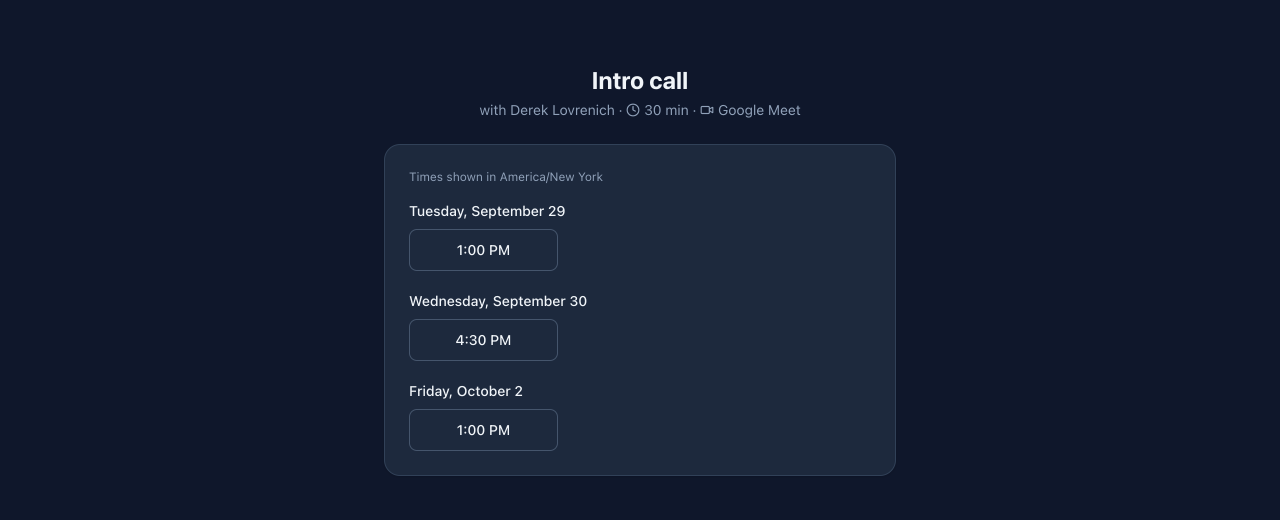
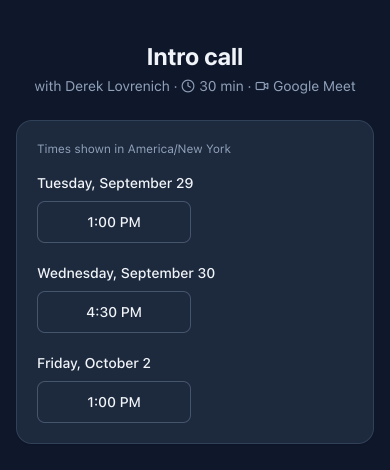
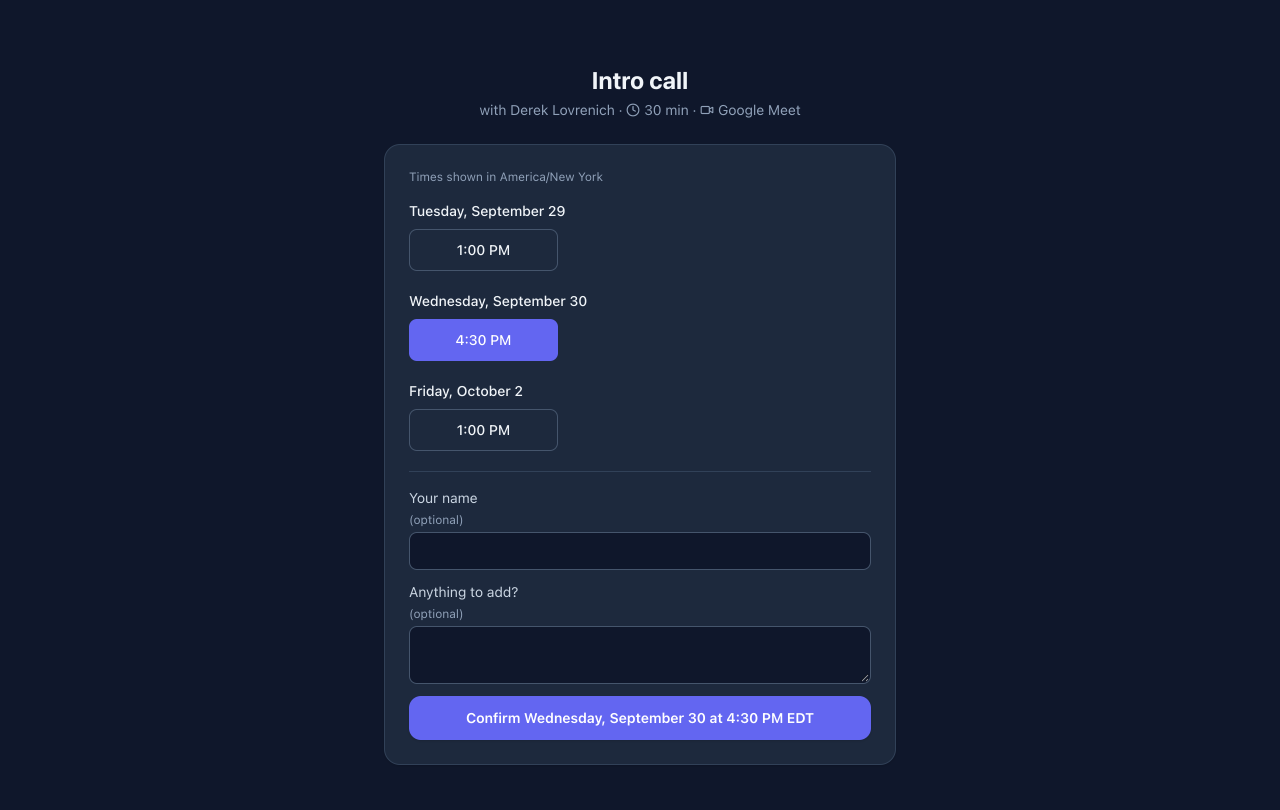
- The meeting name, who it's with, and how long it is.
- Only the times you offered, in their own time zone.
- Any time that has since filled up is crossed out. Your calendar itself is never shown.
- Optional boxes for their name and a short note, then one button to confirm.
When they pick a time
- Jefferson checks your calendar again at that moment. If the time was just taken, they're asked to pick another.
- A confirmation email and calendar invite are prepared. They go out after your Send & book, or straight away if automatic booking is on.
- The client sees "You're booked" or "Thanks — time requested".
Good to know
- A link works once. After someone picks a time, it shows which time was chosen.
- A link expires after 7 days by default (you can choose 1–7), or earlier, once its last offered time has passed.
- You can withdraw a link, or get a new link if the old one went to the wrong place. The old link stops working immediately.
The email and the invite travel together.
When Jefferson writes a reply that includes a meeting, it waits in your Outbox as a draft by default. One Send & book click does both: the email goes out, then the meeting is booked with everyone on the email invited.
Right before sending, Jefferson checks that the time is still free. If it isn't, nothing is sent, and the draft comes back to you with the reason.
Off until you turn it on.
Turn on Book meetings automatically (Scheduling → Preferences) to let replies with a meeting go out and book without asking, but only to people Jefferson is already allowed to email on its own.
With it on, when a client picks a time from a link you sent, the confirmation and invite go out straight away. Sending the link counts as your approval of those times. Your block list still applies in every case.
Everything in one place.
On my.askjefferson.com, open Scheduling. It has three tabs.
Links
- Every pick-a-time link you've sent, and who it was for.
- Its status: Waiting for a pick, Booked, Picked — confirm in Outbox, Needs attention, Expired, or Withdrawn.
- The times offered, or the time picked.
- Get a new link or Withdraw while it's still open.
Meetings
- Needs attention: replies waiting for your Send & book, meetings whose email went out but whose booking failed, and picks that couldn't become a draft. The tab shows a count badge when something is waiting.
- Upcoming: meetings booked through Jefferson, each with a link to open it in Google Calendar.
Preferences
The defaults Jefferson uses. Anything you ask for in a request still wins.
| Setting | Default |
|---|---|
| Working hours | 9:00 AM – 5:00 PM |
| Avoid lunch | On, 12:00 – 1:00 PM (ranked lower, not ruled out) |
| Include weekends | Off |
| Book meetings automatically | Off |
| Add Google Meet (to link meetings) | Off |
| Default length | 30 minutes |
| Buffer around other meetings | Internal 15, client call 15, phone 5 minutes |
| Lead time | 120 minutes (nothing sooner than 2 hours from now) |
| Search range | 7 days ahead |
| Link lifetime | 7 days |
Your time zone isn't set here. It comes from your profile, and the Preferences tab links to Change time zone.
Your calendar stays yours.
- Clients never see your calendar. They see only the times you offered, and whether each is still available.
- Jefferson can read your preferences when it suggests times, but it can't change them. It also can't withdraw links, confirm a Send & book, or switch on automatic booking. Only you can, on my.askjefferson.com.
- Jefferson can't see an outside person's calendar. It only keeps their times inside their working day.
If something looks off.
"No time fits everyone."
Try a wider date range, a shorter meeting, longer working hours, or fewer people.
"A calendar couldn't be read."
Jefferson won't guess. If it can't read someone's calendar, it proposes nothing. Try again in a few minutes, and check that the person's Google account is still connected.
My client says the time was taken.
Someone booked it between your link going out and their click. They can pick another available time on the same link.
The email went but the meeting wasn't booked.
It appears under Scheduling → Meetings → Needs attention with the reason. Add it to your calendar by hand, or ask Jefferson for a fresh invite.
The times are in the wrong zone.
Fix your time zone under Settings → Timezone. For clients, tell Jefferson where they are.
A meeting I just added isn't being avoided.
Jefferson reads a synced copy of your calendar, so a brand-new event can take a short while to count.